

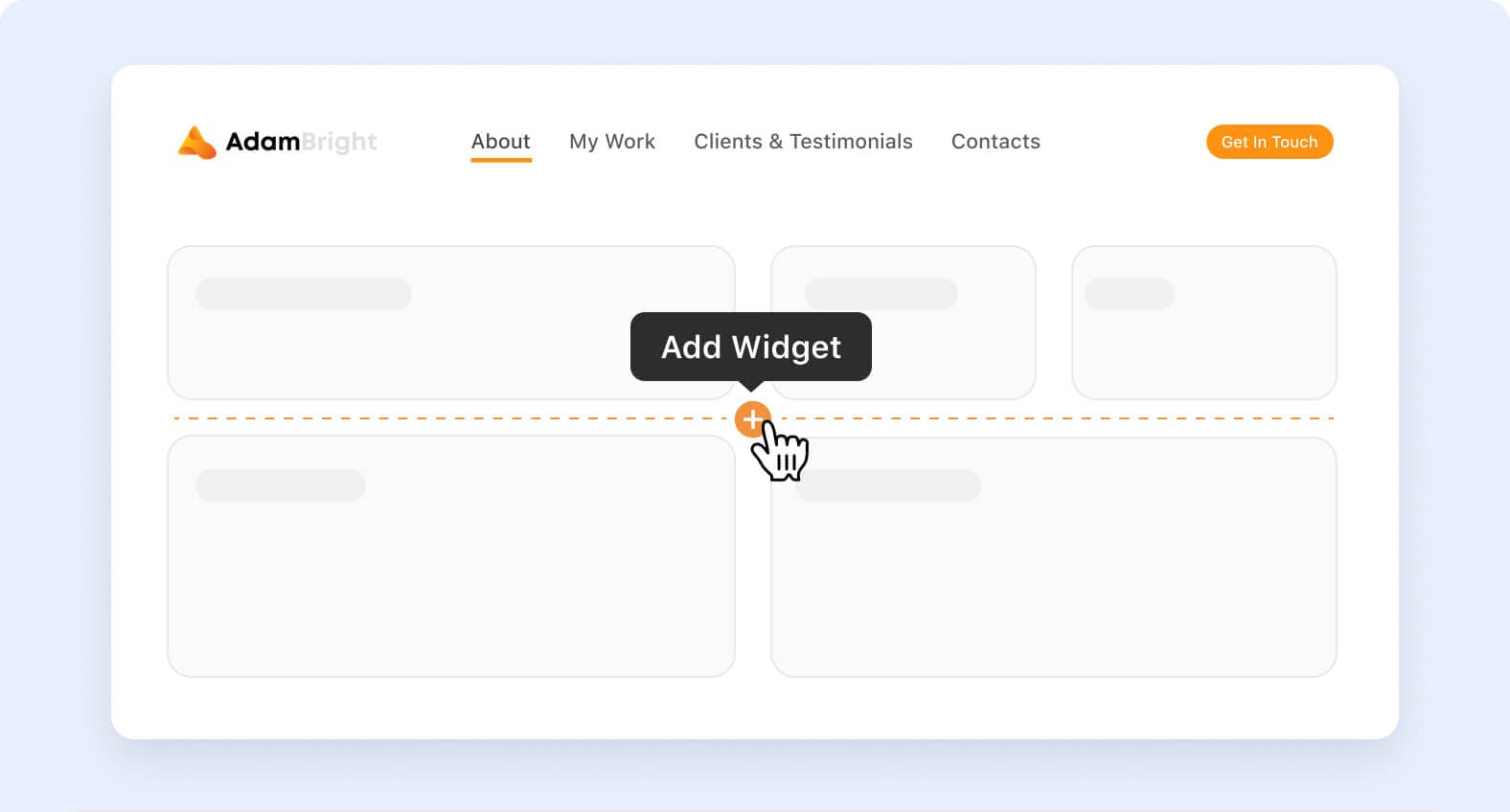
SmartSuite dashboards now let you drop new widgets exactly where you need them. Instead of always landing at the bottom of the layout, a subtle + icon appears between existing widgets on hover; choose any item from the Widget Library and it is placed right in that spot—keeping your dashboard flow intact.
Key Highlights
Inline + Add Widget control surfaces between widgets as you hover.
Opens the full Widget Library, so every widget type is available in-context.
Honors current row / column sizing so the new widget fits the surrounding layout automatically.
Keyboard-accessible: press Tab to focus the inline control, then Enter to open the library.
Works in both grid and free-form dashboard layouts.
Fully backwards-compatible—existing dashboards gain the feature instantly, with no migration required.
How it Works
Hover anywhere between two widgets and click the floating + button that appears.
The Widget Library opens; pick the widget you want to add.
SmartSuite inserts the chosen widget precisely where the inline control was shown.
Drag-and-drop or resize as usual to fine-tune your dashboard.
This update makes building pixel-perfect dashboards faster and more intuitive—no more dragging new widgets from the bottom of the page back up to their intended positions.